Pages

Showing posts with label photoshop elements. Show all posts

Thursday, April 12, 2012

Why I'm A Sucker For A Good Template

I mentioned in yesterday's mish-mash of a post that I'm a sucker for a good template.
I bought quite a few last fall whenever a designer I liked would have a sale or coupon code, but like any good sale, it still adds up.

But the longer I do this business thing the more I'm a believer that great templates are essential to me.  I've learned the complicated way over the past 2 years that the end result of the photographs, the products, are where I'm able to make money and please my clients.  And let me tell ya folks, there's no shortage of fantastic products available!

I really really really stink at graphic design but I know exactly the design and style I like to showcase my images.  This is where the templates come in....I can buy beautiful templates for albums, cards, frames and everything else to create a very unique and eye-catching product that my client will love.

Here's some examples for you...this is a 4x8 Accordion album which is one of my absolute favorite new products I just started offering.  I bought this template...


...and turned it into this beautiful accordion album...


Graduation cards are another thing that are so easy to customize and the templates I've chosen for grad cards just pretty much blow the school cards out of the water!  Look how gorgeous...


My true weakness though is album templates...I have to restrain myself from buying every album template by Crave Design.  Here's their French Script Ohh La La which I've made several times into albums for Children and High School Seniors...


Since I'm kinda decent at working in Photoshop Elements I can alter all the text, colors, frames and pretty much rig all these templates up to fit what I need.  That way they're truly unique to the images that I'm creating them for and each client gets the product thats perfect for them. 

Anyway, templates have become a slight obsession and I've shown ample proof as to why I love them. What about you...are you a template junkie?

And since I want everyone to have the guilty habit I do of splurging on great templates, here's a few of my favorite sites for designs....Enjoy~

www.cravemydesign.com
www.jamieschultzdesigns.com
http://www.simplicityphotography.com/design/

Monday, May 30, 2011

Editing Newborn Skin Using Textures

Photoshop Actions seem to get all the glory when it comes to editing skin and color correction.
But I'm here to show ya today that textures can be just as effective as actions and are so simple to use for so many things other than just the funky stuff.  


You may recall that a few weeks ago I did a photo session with newborn Baby Zara.   Before I even started shooting I had a vision for *dreamy* *creamy* photos showcasing that super sweet newborn skin.  
But if you've ever photographed newborns, you know that typically their skin is blotchy and usually have strong yellow or red undertones.  Here's how I edited this newborn skin to achieve a creamy, consistent look to it:


1. I opened my original photo in Photoshop Elements 6 for Mac. 


Honestly her skin looks pretty darned good for a newborn but I wanted a much creamier look.  I started by overexposing all the images just a tad in-camera which I prefer for making skin look better and hiding flaws.


Next I cropped the photo in just a little tighter.  And although I'm singing the praises of textures today, I did use one layer of an action on these images!  I run Coffeeshop Baby Powder Room on *almost* every portrait to soften the skin, but you can also use a Gaussian Blur filter to achieve the same results.  I ran the Smooth Skin layer at 14% for just the tiniest bit of softening.


Then I decided I want to get rid of that wrinkle in the background so I used the color picker to choose the pink color from the blanket to paint over the wrinkles.


Check out the left corner where I just started "painting" over the wrinkles with the solid color.


Next I selected a soft grungy texture {Favorite Apron from Coffeeshop} with a bit of a purple/pink tone to it and placed it over my photo.  I used the Overlay option at 40%.


Just by adding this soft texture it tremendously evened out the skin tones and added that dreamy look I was wanting to convey.  But I wasn't quite done.....the skin still had a little too much red in it so I duplicated the layer {after flattening} and went to Adjust Color - Adjust Hue/Saturation then chose the Reds channel and moved the slider to a +9.  This took down the red quite a bit and got the skin right where I wanted it.  


Here's my final:


And here's another B&A using these same steps:


It's So Easy!
So give your textures a try the next time you're in need of some color correction!  You don't always need an arsenal full of actions to get Fabulous images!


And I'd love to hear how you use textures for editing other than the usual stuff....Share Your Wisdom!
Leave Some Awesome Comments!

Wednesday, March 30, 2011

Anatomy Lesson....Veiled Princess

I mentioned in an earlier post that studio lighting terrifies & intimidates me.  That pretty much says it all~
But I've come to realize that if I actually want to create all these dramatic, awesome portrait ideas that I have spinning around in my brain, I'm going to have to learn to be in control of the light.  


So a few months ago I bought an inexpensive light set with 2 softboxes and a kicker light.  {I love saying "kicker light" it just sounds fun!}  
I've been experimenting with them occasionally but decided to do an "official, for real" photo shoot with Princess.  I had a specific look in mind for these portraits and my goal was to actually create the images I had in my brain.  


I'll be sharing more about my set-up on the Texas Chicks blog soon, but today I wanted to share a quick Anatomy Lesson on one of my favorite edits from the session.


I opened my original image in Photoshop Elements 6 for Mac...


I loved the soft yet intense expression on Princess but I was really back & forth on how to edit and crop it.
The composition just wasn't doing it for me but I couldn't decide what to keep and what to trash~  I liked the black space on the right....I liked the curve and the bokeh of the chair at the top and I liked the mix of the cream/white/black colors.  Ultimately, I decided that the focus should be on her and I didn't want the chair distracting from that so I cropped in real close...as usual!


Her skin looked great {6 year old skin is always great!} but the corner of her left eye and the corner of her mouth was too dark so I wanted to lighten those.  I used the Clone Tool with the mode set to Lighten at 23%.


*Sidenote ~ I just started using the Pencil Tool and I love it!  I totally stink at it but it's so fun!  I used it to circle the Mode & Opacity at the top~


Next I softened the skin just a tiny bit with Baby Powder Room then I was ready to decide on the final processing.  And guess what....I couldn't decide!  So I tried 2 different versions...


For the first one, I really wanted to keep that great mix of color tones so I simply ran the Velvet Truffle action from Coffeeshop and adjusted the Color Fill 2 layer to 25% instead of the default 75% opacity.


That's the wonderful thing about actions....most of them are adjustable so you can really make them fit to your style.  Don't be afraid to play with opacities, turning off layers, and combining one action over another.  You never know what you'll end up loving~


So here's my final in version #1...


*I just love her*


And here's my final in version #2.  This is a vintage treatment that I used on several of the other shots from this session...


I'd love to know which version you prefer!  
I'm going to be ordering some large samples for my home and I'm leaning towards a 24x24 of version #1 in a metal print~  Suggestions??


I'll be posting lots more from this session since I learned a ton about studio lighting, but if you just can't wait and want to see more of these shots you can check them out on my Facebook fan page.  


Enjoy~

Sunday, February 13, 2011

Video Tutorial ~ 40 & Pregnant

I've made another video tutorial and it's kinda fun!  
I talk pretty fast though and I've actually tried to slow it down for the videos but then they'll end up being 3 hours long so that's been a challenge for me.  Plus I tend to ramble so I'll just apologize now because I don't think I can stop doing that anytime soon~


This video features a portrait of my Cutie Pie Pregnant BFF Sharon.  She's expecting her 2nd baby girl soon and about to turn 40 so we had quite a memorable day celebrating all the great stuff going on in her life right now.  I'll be sure to tell you all about it in another post where I'll feature a normal step-by-step edit for those of you who aren't fans of the video.  


Also, I've asked a question at the very end of the video about a problem that I've encountered recently with several of my portraits and I'd love to hear your feedback.  I think it's weird to have my reflection in my subjects eyes and I'm wondering if any of you ever experience that?  I've explained it at the end so you can check it out....Enjoy~


Friday, February 4, 2011

My First Video Tutorial!

Wanna know what I learned while making my first ever video tutorial? 
~ It's harder than you think!

It took me about 9 tries to record this thing!  I'm not used to actually explaining what I'm doing and why I'm doing it when I edit so it was really weird for me.  But I tried to make sure to tell what tools I use (like the Liquify tool....the Brush tool) and also mention all the actions I was using and where I got them from.

So if you actually make it thru all 11 minutes of my rambling I would love your feedback!  Let me know what was good....what I need to improve....and what you'd like to see next.  And here's a huge "Thank You" in advance for watching my first ever, super cool, way awesome video tutorial on 
Using Actions to Enhance Your Images!!!! 
{and if it doesn't work just humor me and tell me it was fabulous}

Tuesday, January 18, 2011

Anatomy of....Winter Bride

This weekend I had the {honor/pleasure/terrifying experience...again!} of photographing a wedding.
I typically don't do weddings because:
A.  I think I need different equipment to fully do what I think is necessary at a wedding.
B.  I spend so much stinkin' time editing my photos that it would take me months of work to     edit all the photos I take at weddings which would mean I would have to charge a ginormous amount of money to make it worth my while which would mean that my target market would probably be very small so maybe I should go ahead and advertise for weddings?
C.  I have no desire to deal with bridezillas.


But, I had no need to worry about a bridezilla with my *fab* bride this weekend, Megan.  It was barely 30 degrees outside but she went along with my crazy request to get a few outdoor portraits (in her strapless gown!) since the church was so dark inside.   I only had about 10 minutes to photograph her and the groom  but we were able to get some great portraits in the afternoon light.


Here's one that I just knew was gonna be great as soon as I saw it in the camera.  Megan had an awesome vintage fur coat that she put on at the end and I loved the glam look it added~


I don't usually do this but I'll show you one of the final edits first...


Now for the editing part....I opened my original file in Photoshop Elements 6 for Mac:


First I adjusted the Levels just a little to whiten it up a bit.  Then I noticed that her eyeliner had come off at the very corner of her right eye.  This made her eye look rounder at the end instead of pointier.  {hope those technical terms don't confuse you!}  Anyway, I wanted to smooth out her eyeliner to the end of her eye so I went to Filter - Distort - Liquify...


While in the Liquify tool I used the "finger" tool and just smoothed out the eyeliner to a point just like I would do with my own finger if I were smudging it on her face.  Here's a close up with the eyeliner smudged:


It's those tiny little details that can make or break a photo:)
Next I used the Coffeeshop Baby Powder Room to smooth her skin then I flattened the image.


I decided to use the Coffeeshop Coffee with Cream action to give this image a very creamy look.  I ran the action then erased out the bottom part around the coat and lowered the gradient to 67% so it brought back a little more color...


After that I thought it needed a bit more dreaminess so I ran the Orton action....one of my absolute favorites for portraits these days!  I lowered the opacity on the Orton layer to bring back some definition...


Beautiful!  Here's my final again...


But, as usual, I couldn't let it alone:)  I wanted to see if I could add a little more of a high fashion look so I ran the PW Seventies action and lowered the opacity...


Here's my final with the Seventies look to it:


I like that one too!!  
I've got plenty more shots to show off from this incredible bride...and her handsome groom wasn't too shabby either~


So tell me, which version do you like best?

Friday, September 24, 2010

Behind The Scenes Part 1

NO ~ I haven't fallen off the face of the earth.
YES ~ I've been busy.

Something you may not know about me is that I absolutely love anything that shows Behind The Scenes.
Anything that shows how something was made or created, I'm drawn to it.
I watched all 32 hours of The Making of Star Wars on dvd.  {not the old ones, the new ones}
It was fascinating and I'd highly recommend it if you have an extra 32 hours with nothing to do~

Which brings me to today's post...kind of...
My favorite behind the scenes is seeing how photographers have set up their lighting, props, and all the other stuff that goes along with getting that perfect shot.  Moms with Cameras has a great series on lighting that shows various set ups each week with different photographers.  I love peeking into their world and you should check it out if you like that kind of stuff too~

So a few weeks ago when I decided to do the bravest thing any mom can do {a photo shoot with my own punks!}  I asked my aunt to take a few shots...of me taking a few shots...!  It was fun to see them and I thought I'd share them with you...

Here's what my kiddos looked like most of the time...


Kinda reminds me of those famous Dwarfs...you've heard of Ticked, Sneezy, Neglected and Whiny haven't you?

I eventually threatened enough and got them together for some posing...
This angle...

...gave me this shot...

And speaking of angles...it was really interesting to see what a difference just walking a few steps over 
could make in my image.  Here's a head-on shot of the crew....

Yeah, they look cute enough but that jungle back there is pretty scary!  I walked just a few steps to my right and took the photo from a new angle to get this...


The kids never moved but it looks a little less scary now~
That just reinforced the notion for me to take shots from several angles even if I think the first is good enough.

Here's a few I took of Princess...who has never seen America's Top Model but I do believe she could teach the contestants a thing or two about rockin' the attitude...


Ya think?

I did manage to catch a moment of sweetness and got one that I'm just lovin'~


This shows my fancy stuff...I had my "assistant" holding my new toy, the reflector.  It works wonders when you use it right...which I'm still working on!

{disclaimer:  I have no idea what Alexis' Mum is doing!  Sorry Alexis' Mum, I couldn't resist!}

These are the shots I got from that angle using the reflector to even out the light.  Notice how there's no harsh shadows on the faces even though it was waaaay sunny out with no clouds?  That's the magic of a reflector!


I hope you've enjoyed my little installment of Behind The Scenes Part 1.  And in case you didn't guess, I named it Part 1 because I have more to share later!  

Seriously....I've got lots more coming and so much to tell....I've been busy creating some new marketing products....trying new props and I can't wait to share all about my really fun shopping trip to Dodds Camera~ 

Stay Tuned!


Tuesday, August 17, 2010

Mission Impossible

Princess has been the "cover girl" of my photography business for the past year {much to her brothers' dismay} but recently I wanted to update my business cards and some marketing with a new photo.  But I really liked the old photo I've been using because it's very striking and displays my dramatic style perfectly.  {plus I'm biased and just love showing off my baby girl...!}


So, I attempted to do the impossible for my new marketing and that was to re-create a dramatic, intense photograph of my daughter that I could use in my marketing and evoke a similar look & feel to my previous photo.  No biggie!


I actually had a lot of goals in mind when I loaded up the punks for the yearly family photo shoot...I'll share more of those later....so here's what I was able to achieve for this specific goal....


Here's my old photo that's been on my business cards, website splash page, marketing info...


I think it's very eye-catching for marketing purposes and I just like it.

And here's this years shot that I wanted to use on my new marketing pieces...

I opened my original in Photoshop Elements 6 for mac:

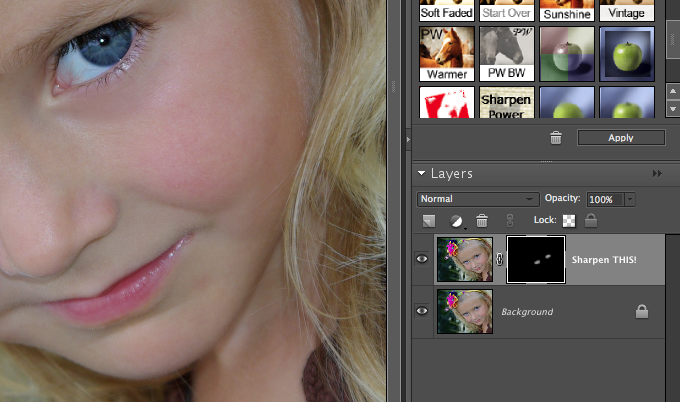
The first thing I wanted to do was sharpen those eyes so I ran Pioneer Woman's Sharpen This action and just brushed the eyes with my brush at about 28%....I've read you're supposed to sharpen last but I couldn't wait...I don't claim to be technically correct~
{also, I really hated to do it this time but I cropped the photo too for a better Rule of Thirds composition}


Next I wanted to focus more on the expression and less on the surroundings so I duplicated the layer
and selected Filter - Blur - Gaussian Blur at 9.4 pixels over the entire photo...

Of course I didn't want her whole face all blurred out so I added a Coffeeshop layer mask and erased the blur heavily on her eyes and mouth and lighter on the rest of the face...you can see the little alien face in black on the layer mask that shows the lighter and darker erasing...


Next I added a texture from the Supernatural collection for just a touch of dimension, nothing fancy this time....and I erased almost all of it from her face and just left it on the edges...


Then I ran the Coffeeshop Butterscotch Vintage action to brighten up the skin tone and because I just love it so much.  It still didn't have the punch I was looking for though so I ran the Coffeeshop Vivid 2 action and selected the Soft setting but erased some of it lightly off her face...

And here's my final~  Meet the cover girl for Inspired by christy 2010!


So let's take a look at my mission:
~ pretty blonde girl - got it!
~ striking blue eyes - got it!
~ intense dramatic attitude - got it!

I'm satisfied with my attempt for a similar look without copying the same exact pose....
what do you think?


Thursday, August 5, 2010

Anatomy of...Pretty Pretty Girl

Let me just say, when you have to look no further than your own family for the most beautiful, most fun, most striking models, that's a really good thing!


My 'nieces' were in town last week and I couldn't wait to do a photo shoot with them.  I tried some new props and they showed up with tons of great accessories...we had plenty of jewelry, fun clothing and even argyle socks~  Can't go wrong with argyle socks!


I've got lots of photos I'll be sharing from their shoot but here's one that I thought you may enjoy seeing my editing process...this one is of Beautiful Emily who is just a natural in front of the camera~


I opened my original in Photoshop Elements 6 for Mac...

I loved her expression here but wanted to change the composition so I cropped the photo but wound up losing space on the left side.  My pic looked like this:

So I chose the Clone tool and cloned in some more of the weeds.  This background is pretty easy to clone but a more detailed background would have been tough~  My final cloning wasn't perfect but I knew I'd be adding some texture so I thought it was good enough...here's what it looked like:


Next I softened the skin in Baby PowderRoom and did a little "facial treatment" on just one little part of her eyebrow...I chose the Clone tool again and cleaned up her eyebrow so it was a finer line along the edge...just call it a pain-free waxing!  
This is what it looked like Before I waxed {cloned}....and you can check out the After on the final pic because I forgot to take a close up shot of it!

It's the fine, little details like that that can make all the difference in your images ~

Next I added a texture from the Supernatural collection...something soft and dreamy...
then added a layer mask and erased most of it off her body...


Next I wanted to increase that dreamy look so I ran the Orton action and reduced the opacity to 82%...


Then, because I just wasn't content with the feel of the photo, I duplicated the layer and ran a Gaussian Blur on the top layer and erased most of it off her face and shoulders...this really intensified the dreamy background...


If you'll notice the black part on the white layer mask you'll see some that's gray and some that's black...this is where I used a lower opacity brush on the edges and a higher opacity on the face.  This eases the transition from focus to blurred and makes it look more natural...or at least that was the plan!

Finally I wanted to brighten the photo just a bit so I ran Coffeeshop Vivid 2 and used the Soft layer at 38% and lightly erased the Vignette in the right corner...


Here's my final...


Isn't she lovely ~

More photos coming from this session including her sisters - Twins! - and argyle socks!


Blog Designed by Rita of CoffeeShop